How to Use Google Search Console | A Complete Beginner's Guide
Shusaku Yosa
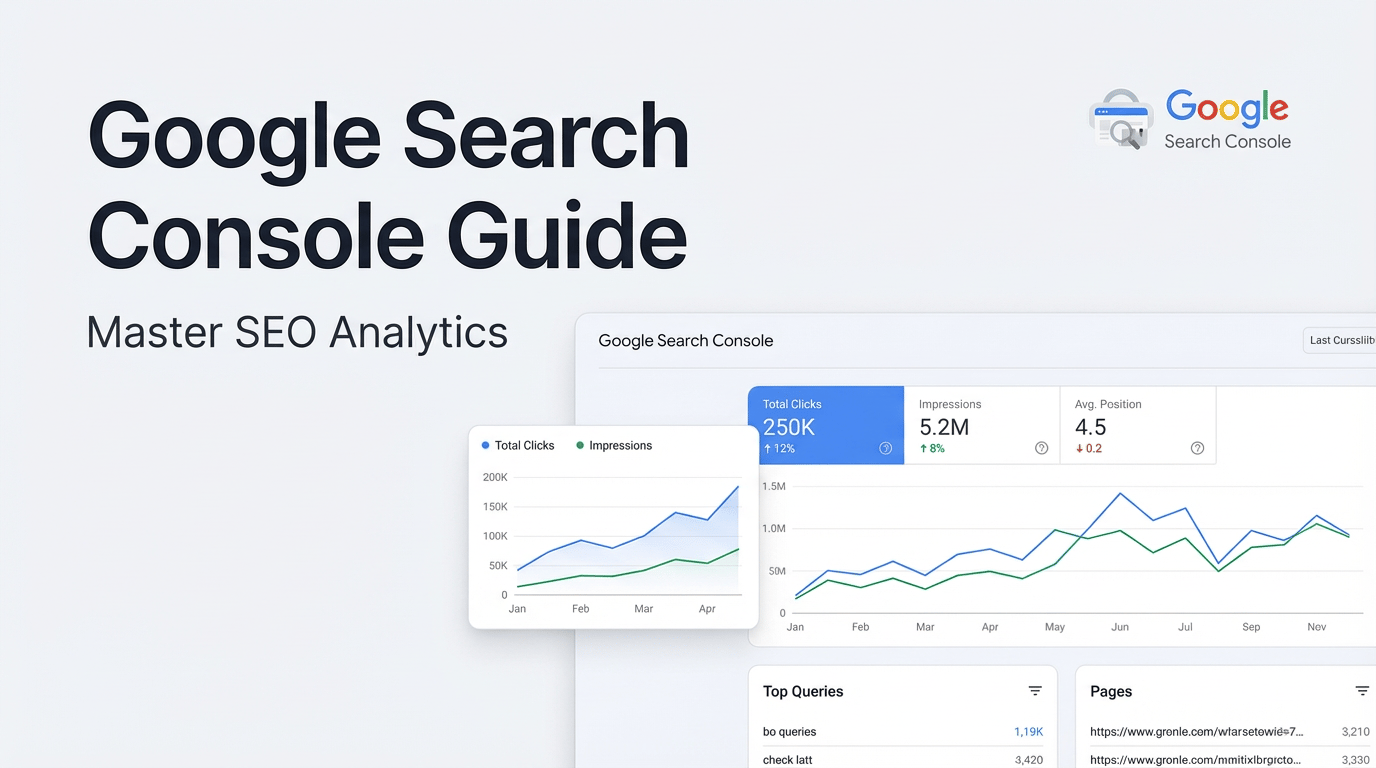
"I want to set up Search Console, but I don't know where to start." "I opened the dashboard, but I'm not sure which numbers to look at." — Many website managers and blog operators share these frustrations.
Google Search Console is a free official tool provided by Google. It lets you see how your site appears in Google Search, how many clicks it receives, the status of your index, and any technical issues. It is an indispensable tool for anyone working on SEO.
This article provides a systematic, step-by-step guide — from registering for Search Console to basic operations and practical tips — so that even beginners can follow along with confidence.
What Is Google Search Console?
Google Search Console is a tool for diagnosing and managing the "health of your website in Google Search." It was formerly known as "Google Webmaster Tools" but was renamed to Search Console in 2015.
Here are the main things you can do with it:
- Check impressions, clicks, and rankings for each search keyword
- Monitor page indexing status
- Submit XML sitemaps
- Detect technical issues such as mobile usability and Core Web Vitals
- Check for manual actions (penalties)
- Review external and internal links
While Google Analytics analyzes "what users do after arriving at your site," Search Console visualizes "the search stage before users arrive." Using both together gives you a complete picture from acquisition to behavior.
How to Register and Set Up Search Console
Step 1: Log In with Your Google Account
Go to Search Console (https://search.google.com/search-console/) and log in with your Google account. Choose the account you use for site management.
Step 2: Choose a Property Type
Search Console offers two property types: "Domain" and "URL prefix."
A Domain property manages the entire domain — including subdomains and http/https variations — in one place. It requires DNS verification but is the recommended method because it captures comprehensive data.
A URL prefix property registers a specific URL pattern (e.g., https://example.com/). Its advantage is that you can choose from multiple verification methods, such as an HTML tag or linking with Google Analytics.
Step 3: Verify Ownership
For a Domain property, add a DNS record. For a URL prefix property, choose from uploading an HTML file, adding a meta tag, linking with Google Analytics, or linking with Google Tag Manager. The easiest method is Analytics-based verification if you have already installed Google Analytics on your site.
How to Read the Search Performance Report
The most important feature of Search Console is the "Search Performance" report. It shows four key metrics.
Total Clicks
The number of times users clicked through to your site from Google search results. This is the fundamental metric for understanding how much traffic you are receiving from search.
Total Impressions
The number of times your pages appeared in search results. If impressions are high but clicks are low, there is room to improve your titles and meta descriptions.
Average CTR (Click-Through Rate)
Clicks divided by impressions. A low CTR signals an opportunity to revisit the appeal of your titles and descriptions in search results.
Average Position
The average ranking of your pages in search results over a given period. Tracking position trends helps you understand the impact of content improvements and algorithm updates.
These metrics can be filtered and segmented by Query (search keyword), Page, Country, Device, Search Appearance, and Date. This lets you analyze exactly which page ranks at which position for a specific keyword.
How to Submit a Sitemap
Submitting an XML sitemap through Search Console helps Google's crawler understand your site structure efficiently and promotes indexing.
Open "Sitemaps" in the left menu, enter your sitemap URL, and click "Submit." If you use WordPress, specify the sitemap URL auto-generated by plugins like Yoast SEO or All in One SEO (usually /sitemap.xml).
After submission, confirm that the status shows "Success." If an error appears, check whether the sitemap URL itself is correct and whether the XML format is valid.
How to Use the URL Inspection Tool
The URL Inspection tool checks how a specific URL is indexed by Google. Enter a URL in the search bar at the top of the screen to see the following information:
- Whether the page is indexed
- Last crawl date and time
- Mobile usability status
- Structured data errors
For newly published pages or pages with significant rewrites, click "Request Indexing" to ask Google to re-crawl the page. Note, however, that this is only a request — indexing is not guaranteed to happen immediately.
Checking the Indexing Report
The "Pages" report (formerly Coverage) in the left menu provides an overview of the indexing status across your entire site. Pages are broadly classified into two statuses:
- Not indexed: Google is aware of the page but has not indexed it for some reason
- Indexed: The page is properly indexed
If you have many "Not indexed" pages, possible causes include blocked crawling, noindex tags, or content quality issues. Since the remedy differs depending on the reason, check the details and address each case individually.
Using the Links Report
Under "Links" in the left menu, you can review both external links (backlinks) and internal links.
The external links report shows which pages receive the most links from other sites and which domains are linking to you. High-quality backlinks are an important factor in boosting SEO, so check this regularly.
The internal links report shows which pages within your site have the most internal links pointing to them. Confirm that important pages receive adequate internal links and use this data to optimize your link structure.
Checking the Experience Report
Search Console also provides reports on Core Web Vitals (LCP, INP, CLS) and mobile usability.
Core Web Vitals consist of three metrics: loading speed (LCP), interactivity (INP), and visual stability (CLS). They are rated as "Good," "Needs Improvement," or "Poor." Pages rated "Poor" should be prioritized for improvement.
The mobile usability report detects issues such as text that is too small or clickable elements that are too close together. In the era of mobile-first indexing, inadequate mobile optimization directly affects search rankings, so address these issues promptly.
Practical Steps for SEO Improvement Using Search Console
Here is a workflow for using Search Console data to drive real SEO improvements.
1. Find Queries with High Impressions but Low CTR
Keywords with many impressions but a low CTR in the Search Performance report represent an opportunity to increase traffic by improving titles and meta descriptions. Try rewriting them with more compelling, search-intent-aligned titles.
2. Target Keywords Ranking 11–20
Keywords appearing on page two of search results can potentially be pushed to page one through content additions and rewrites. Identify the relevant queries and pages, then add information aligned with search intent.
3. Address Pages That Are Not Indexed
Pages listed as "Crawled — currently not indexed" in the Pages report should have their content quality improved, or if they are unnecessary, consider deleting or consolidating them. A large number of low-quality pages can negatively affect your entire site's evaluation.
4. Build a Habit of Checking Data Regularly
Search Console is not a set-it-and-forget-it tool. It delivers results when you check your data weekly or monthly and iterate on improvements. Track performance trends and analyze the causes whenever rankings or clicks fluctuate, then connect those insights to your next actions.
Linking with Google Analytics
Search Console can be linked with Google Analytics (GA4). Set up the "Search Console link" from the GA4 admin panel to view Search Console data directly within GA4 reports.
The benefit of this integration is the ability to see user behavior on landing pages for each search query — such as bounce rate and conversion rate — in a single view. You can analyze "which keywords bring users who convert" and use that insight to prioritize content improvements.
Conclusion
Google Search Console is the first free tool you should set up when working on SEO. It provides everything you need for site management — from understanding search performance and managing index status to discovering technical issues.
Start by completing the registration and initial setup, then review your Search Performance report. By analyzing your data regularly and turning insights into improvement actions, you can steadily increase your site's ability to attract visitors from search.